Whitelist Us
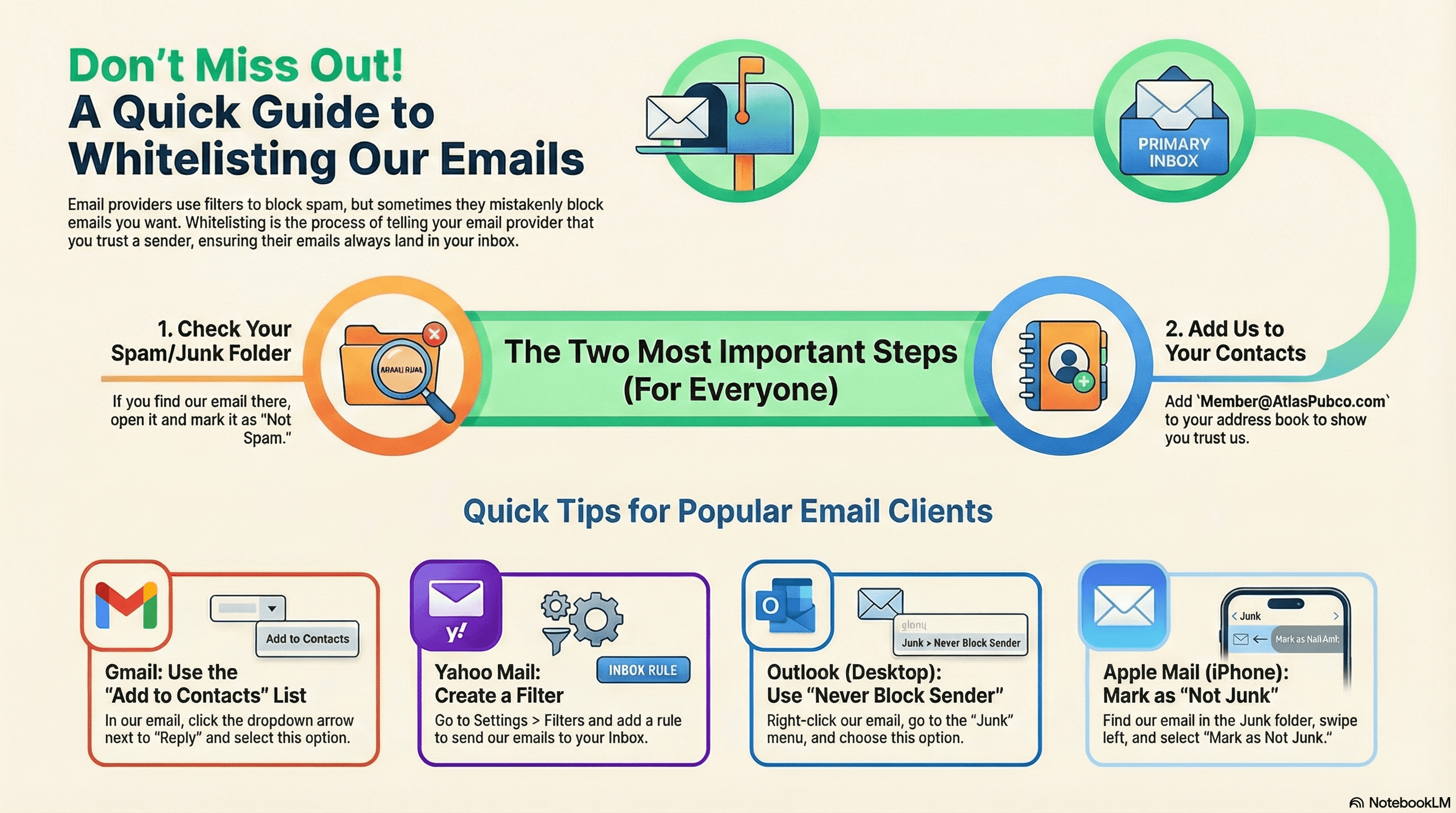
Email and Internet companies use blockers to stop spam. Sometimes these programs block email you want to get. We ask that you add us to your trusted list of senders, contacts, or address book. This is also known as “Whitelisting.”
If you do not see an email from us in your Inbox, our email may have mistakenly been sent to your spam folder.
Please open your spam folder and if you find an email from us, open it and mark it as “Not spam”.
Of course, every email system is different. Below are more specific instructions for some of the more popular ones.
Is your email client or spam filter not listed?
One thing you can do no matter what email system you’re using is add the address in the “From” line of your most recent subscription email to your address book.
If messages continue to be sent to your junk folder contact your ISP or spam filter application support and ask how to whitelist the email. If you’re using some sort of spam filtering or blocking software yourself (in addition to what your ISP provides), we’ve also listed instructions on how to exempt your subscription from some of the more popular of those programs.
Sending Address: If they ask for our address, give them the address in the “From” line of your most recent subscription email (usually Member@AtlasPubco.com).
Domain: If they need to know the domain we’re mailing from, tell them: AtlasPubco.com
Popular Apps
Gmail
To make sure our email gets delivered to your Inbox, you must add our email address to your contacts list.
If you do not readily find an email from us… Please check your Gmail Spam Folder:
If you see the email from us: Open the Email.
Click the button on the toolbar labeled Not spam.
Next, please add us to your Contacts list:
Open the email from us.
Click the drop-down arrow next to “Reply” in the upper right side of the email header.
Click “Add to Contacts List” from the list that appears.
If this does not appear in the dropdown list, you probably have already added us to Contacts.
Gmail Mobile App
If you are using the Gmail Mobile App on your mobile device, please open the app now. If you are using Gmail Tabs such as “Promotions” please open your Promotions tab in Gmail.
If you do not find an email from us, please check the Spam Folder:
When you find the email from us, tap the menu icon (three dots) – top right.
Then select Move to.
Then select Primary from the list.
This way you will always see us in your Primary Inbox tab.
Gmail Tabs
If you are using Gmail Tabs such as ‘Promotions’ please open your Promotions tab in Gmail.
If you find an email from us in your Gmail Promotions tab:
Grab and drag the email to the Primary Inbox Tab.
After doing so, you will receive an alert at the top of your Gmail toolbar: "The conversation has been moved to 'Primary'. Do this for future messages from Member@AtlasPubco.com?"
Click Yes in the yellow alert box.
This way you will always see us in your Primary Inbox tab.
Yahoo! Mail
If you have not received an email from us… Check your Spam Folder. If you see an email from us:
Please open the email.
Next click the Not Spam button on the top toolbar.
To ensure delivery: Create a filter to automatically send our emails to your Inbox.
Move your mouse over or tap the Gear icon in the top right navigation bar.
Select Settings from the list that drops down.
Choose Filters located on the left side of the page.
Click the Add button on the Filters page.
Create a name such as Whitelist in the Filter name field.
In the From field leave the default contains selected.
Enter Member@AtlasPubco.com in the text box next to Contains…
Choose the destination folder to which you would like the message delivered. For example: Inbox.
Click or tap Save.
You will see in the next screen "Deliver to Inbox if From contains Member@AtlasPubco.com".
Click or tap Save on this screen.
You will be returned to your Yahoo! Inbox.
iPhone Mail App
iPhone Mail identifies most junk mail (spam) sent to your @icloud.com address or aliases, but it can mistakenly move email to your Junk mail folder. Periodically check the Junk folder for email messages that were marked as junk mistakenly.
To indicate that an email message from us isn’t junk:
Open your Mail app and go to the Mailboxes screen.
Scroll down to the folders area.
Select the Junk folder.
Find the email from us and slide it left to see options.
Tap the More button.
Tap the Mark button.
Tap the Mark as Not Junk button.
The message is moved to your Inbox. Subsequent email messages from us will no longer be marked as junk.
Outlook Mobile App
To add us to your list of Focused Inbox on the Outlook App:
Please open the mobile Outlook app on your Android, Microsoft or iPhone.
Open the email from us.
Click the dropdown menu (three dots) on the top right of your Inbox.
On the menu displayed tap Move to Focused Inbox.
Select the Move this and all future messages button.
Tap Move.
Now all future messages from us will appear in your Focused Inbox.
Outlook 2003, Outlook 2016 and Outlook Office 365
To add us to your list of “Safe senders” on Outlook:
Right-click our email in your Inbox email list pane.
On the menu displayed move your mouse over or tap Junk.
Click or tap on Never block sender in the menu that rolls out.
The resulting popup will say: “The sender of the selected message has been added to your Safe Senders List.”
Click OK.
To add sender to address book:
Open the email.
Right-click on the from address.
Choose Add to contacts option.
Email Clients
Outlook.com
Previously “Hotmail”, “Live”, “Windows Live” and “MSN”.
In the new Outlook.com you must click the Wait it’s safe link if you find emails incorrectly identified as spam. Entering the email contact in the address book or contacts no longer whitelists the sender.
To ensure messages from specific email addresses are not sent to your Junk Email folder, you can do one of two things:
Check the Junk folder. If you see the email in your Inbox, open the email from us.
Click the “Wait it’s safe” link.
Manually Add to Safe List:
Click the Gear icon on the top right.
Select Options in the drop-down list.
On the Options page under Preventing junk email click Safe and blocked senders.
Click the link Safe senders on the next page.
Enter Member@AtlasPubco.com in the text box.
Click Add to list.
We will now be added to your list of Safe senders. Emails added to your Safe senders will not be delivered by mistake to your Junk folder.
AOL Webmail
To make sure our email gets delivered to your AOL Inbox, please complete these two steps:
If you find us in your spam folder:
Right-click the email.
Click “Not spam” in the resulting list.
Add our email address to your Address Book:
Open the email from us.
Click the show details link next to us in the From field.
Move your mouse over or tap Member@AtlasPubco.com to show the menu.
Click or tap Add contact in the menu displayed.
Add us to the name fields.
Click Add contact.
Email from that Domain will now be delivered straight to your Inbox.
Comcast
Please log into your Xfinity account and select your Comcast webmail.
Should you find an email from us in your spam folder:
Open the email.
Click the Spam (not spam) icon on the top toolbar.
Next please, add us to your address book:
Please open the email from us.
Click on the button at the top left of the email that says: Member@AtlasPubco.com + Add to Address Book.
That will open your edit contact screen.
Then click Save and you’re all done.
EarthLink
If you are not receiving email at EarthLink, there are two actions you can take:
Check Suspect Email folder.
Add us to your address book.
With EarthLink, if you have SpamBlocker turned on, suspect messages are automatically sent to your Suspect Email folder if the Domain is not in your address book.
Suspect Email Folder:
While in the Suspect Email folder, if you see our email…
Select the Move to Inbox and Add Contact option from the drop-down menu.
This will add us to your Address Book for future email delivery assurance.
Address Book Inclusion:
Open the email.
Click Add to Address Book in the email header.
Use the Address Book Editor to verify the sender’s contact details and click save.
Fill in Member@AtlasPubco.com as the email address of the sender.
Any mail sent with the same Domain (right of the @ sign) will now be delivered to your Inbox.
AT&T
AT&T no longer maintains their own inbox. Instead, you can find your AT&T emails at Att.Yahoo.com. Please follow the Yahoo instructions for whitelisting an ATT.net email address.
Mozilla Thunderbird
Please open your Thunderbird email client.
If an email from us appears in your Junk Folder: Please mark that message as Not Junk.
Next, please add us to your Address Book:
Click the Address Book button.
Make sure the Personal Address Book is highlighted.
Click the New Contact button.
Under the Contact tab, copy and paste the “From” address (Member@AtlasPubco.com) into the email text box.
Click OK.
Security Software
Norton AntiSpam
This problem may happen if we are accidentally added to the Blocked List.
To remove us from the Blocked List:
Start your Norton product.
Click Settings.
Depending on your Norton product, locate the AntiSpam or Message Protection section.
Find the Blocked List and click Configure.
In the Blocked List window, select the item that you want to remove, and then click Remove.
Click Apply, and then click OK.
To add us to the Allowed List:
Go to the AntiSpam or Message Protection section in settings.
Find the Allowed List and click Configure.
In the Allowed List window, click Add.
In the Add Email Address window, from the Address Type drop-down, select the address type.
Add Member@AtlasPubco.com, and then click OK.
In the Allowed List window, click Apply, and then click OK.
McAfee Products
In order to add us to the friends whitelist, please open McAfee and click on Web & Email Protection. Then click on Anti-Spam. Click on Friends list. Please add Member@AtlasPubco.com to your “Friends List” to always allow emails from us.
Trend Micro
To prevent our emails from being marked as spam:
Add us to the list of Approved Senders.
Open Microsoft Outlook.
Click the Spam Mail folder then select the legitimate email detected as spam.
Click Approve Sender on the toolbar.
Click Yes when the confirmation message appears.
Spam Filters
Cloudmark SpamNet
To assure our email has not been misidentified as spam:
Select Cloudmark | Options… from the Cloudmark SpamNet toolbar in Outlook.
Click Advanced.
Go to the Whitelist tab.
Click the Add button.
Type in Member@AtlasPubco.com
Click OK.
SaneBox
SaneBox is not a filter, but a filtering system trained by you.
Open your Webmail or Gmail where you use SaneBox.
Open your @SaneLater folder.
If you find an email from us in @SaneLater, please drag our email to your Inbox folder.
By doing this you will always get our great content in your Inbox from now on!
Spam Assassin
Spam Assassin is usually administered by your server admin. Please contact your admin and request that he or she:
Add the following entry to your user_prefs file, which is found in the .spamassassin subdirectory on your web/mail server:
whitelist_from Member@AtlasPubco.comSave the user_prefs file or move the updated copy to your .spamassassin subdirectory.
Barracuda Networks
There are two methods to whitelist email senders.
Whitelist Quarantined Senders:
Open your email client. Barracuda should send you a summary each day listing quarantined items.
Locate the email from us. Click on the word “Whitelist,” which is in green print to the right of the email title.
Click the box to the left of the email that you would like to whitelist. At the top of the page, click “Whitelist.”
Whitelist Senders and Domains:
Open your web browser. Navigate to your company’s Barracuda firewall homepage.
Click on the Block/Accept tab.
Choose “Sender Domain Block/Accept.” Enter the Domain name AtlasPubco.com to whitelist.
Click “Add.”
Click your mouse on the “Email Sender Block/Accept” tab. Enter Member@AtlasPubco.com.
Click “Add.”
SPAMfighter
Highlight the email from us to Whitelist. Click “More” in the SPAMfighter Toolbar and select “Whitelist”. Here you can choose if you want to Whitelist the email address or the whole Domain.
Mail Washer
Click Tools, then Blacklist & Friends.
Click Add… on the right, the Friends list side.
Make sure Plain email address is selected.
Type in Member@AtlasPubco.com
Click OK.
ChoiceMail
Open ChoiceMail.
Click on the Senders tab.
Choose “Approve another Sender”.
Type in Member@AtlasPubco.com
Click on OK.
Spam Sleuth
Select File, then Configure.
Go to the Friends category.
Make sure Active is checked.
Type Member@AtlasPubco.com on a line by itself in the entry field.
Click OK.